
Using Confidential AI in Excel, Word, and PowerPoint
Claude's add-ins for Excel, Word, and PowerPoint work on the file you have open, and its content goes along with every request. You keep using the add-ins, but the model behind them changes: instead of Anthropic's Claude models, open-weight models running inside confidential computing answer, so your cells, text, and slides stay encrypted in memory while they are processed.

The add-ins read more than you type
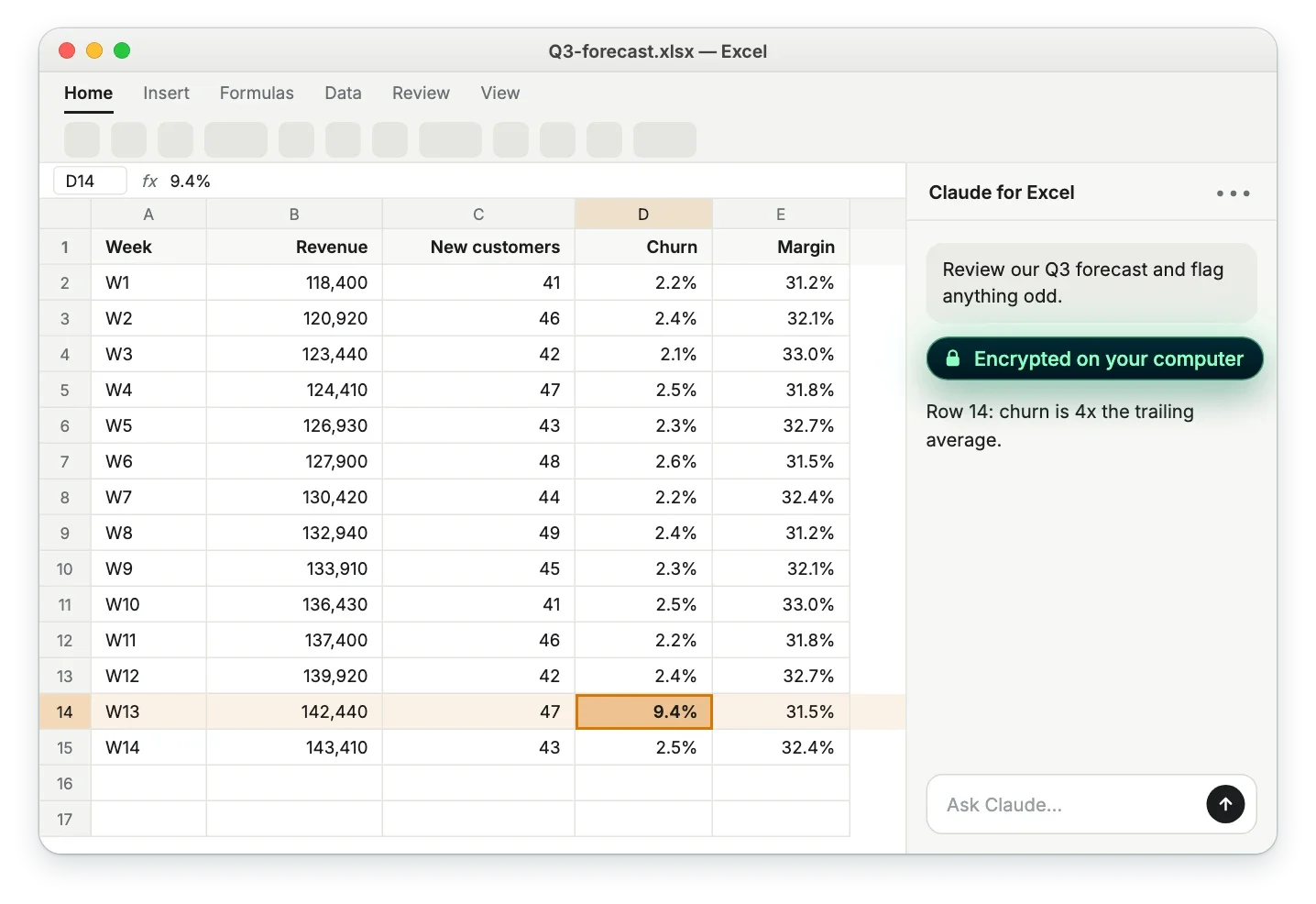
The challenge
The file's content travels with every prompt
To answer a question about a sheet, a contract, or a deck, the add-in reads the content it needs and sends it along with your prompt. With a conventional provider, all of it is processed in plaintext on that provider's servers.
The solution
The same add-ins, a different backend
Desktop Proxy on your computer serves the Anthropic Messages API, so the add-ins can use it as their LLM gateway. It verifies the service through remote attestation and encrypts each request on your computer, and the model then runs in a hardware-isolated environment whose memory stays encrypted.
Why use Privatemode with the Office add-ins?
Excel, Word, and PowerPoint
End-to-end confidentiality
Open-weight models, not Claude models
Free tier available
Watch the setup, step by step
From the download to your first answer, for macOS and Windows. Pick your system and click a step to jump to it. The screens of the add-in and of the system are simplified illustrations.
Set it up in four steps
This guide covers the desktop versions of Excel, Word, and PowerPoint on macOS and Windows. You need Claude's add-in for each app you want to use, installed from Microsoft AppSource, and Desktop Proxy. The sign-in is the same in all three add-ins.
Get your API key
If you don't have a Privatemode API key yet, you can generate one for free here.
Install Desktop Proxy
Install Desktop Proxy for macOS or Windows and open it. In Settings, paste your API key and start the proxy. When the status page says "Verified & serving", the app has verified Privatemode and is ready.
Allow the Office add-ins
In Settings → Integration, set Allowed origin to https://pivot.claude.ai and Model prefix to anthropic.. The add-ins run as web pages from that address, so the app has to allow it, and they only list models whose names start with the prefix. A page from the allowed origin can use the app to send prompts under your API key, but it never sees the key.
On macOS, keep HTTPS switched on under Settings → Local endpoint, which is the default, and allow the password prompt that trusts the app's local certificate. Office on macOS blocks plain http://localhost from add-ins. Windows needs nothing extra.
Connect the add-in
Open Claude's add-in in Excel, Word, or PowerPoint. On the sign-in screen, select Cloud provider or gateway, then Gateway. As the gateway URL, enter the app's local address from the box, without /v1, because the add-in adds /v1/messages itself. As the API token, enter any placeholder: the app uses the key from its settings.
Click Connect, then pick a model such as anthropic.glm-latest. Models ending in -latest follow Privatemode's model updates automatically. Do the same in the other Office apps you use.
Frequently asked questions about Claude for Office with Privatemode
Check that the app's status page says "Verified & serving". Then check the gateway URL: it has no /v1 at the end, and it is http://localhost:8080 on Windows and https://localhost:8443 on macOS. On macOS, click Trust certificate on the status page if it says that browsers will refuse the HTTPS endpoint.
Your agent remembers everything. Your model provider shouldn't see it.

Your gateway routes every team's prompts. Your model provider shouldn't read them.

Want to look for yourself?