
Integrating Privatemode AI with GitLab Duo
GitLab Duo brings code suggestions, chat, and code review into your GitLab instance, and Duo Self-Hosted lets you serve them from a model endpoint of your choice. Backing it with Privatemode means those features run on open-weight models served by Privatemode instead of a vLLM deployment on your own GPUs, with prompts and source code encrypted in memory even during processing.

The challenge
Your own model means your own GPUs
Duo Self-Hosted lets regulated and air-gapped organizations run GitLab Duo on a model they control. Doing that yourself means operating a GPU fleet: running vLLM, planning capacity, and scheduling upgrades.
The solution
Your own model, without the hardware
Your AI Gateway connects to the Privatemode proxy as an OpenAI-compatible endpoint. The proxy encrypts every request before it leaves your network, and the model runs in a hardware-isolated environment, so by design neither the infrastructure provider nor Privatemode can read your code.
Read GitLab’s take on confidential AI.
Confidential AI for GitLab Self-Hosted
Learn how GitLab Duo Self-Hosted and Privatemode give regulated teams AI coding agents while keeping source code inside a hardware-encrypted boundary.
How to back GitLab Duo with Privatemode
You need GitLab Self-Managed, Premium or Ultimate, 17.9+, with the GitLab Duo Enterprise add-on. You run both the AI Gateway and the Privatemode proxy yourself, so the steps below are deployment-agnostic (Linux package, Docker, Helm) — follow the linked GitLab docs for the specifics of your setup. The setup has three parts: run the Privatemode proxy, deploy GitLab's AI Gateway, and register the proxy as a self-hosted model in GitLab.
Get your API key
If you don't have a Privatemode API key yet, you can generate one for free here.
Run the Privatemode proxy
Follow the Privatemode API quickstart. Enabling the shared prompt cache (--sharedPromptCache) is recommended for this workload.
The proxy serves an OpenAI-compatible API on :8080/v1. Make sure it's reachable from the AI Gateway and note that URL — for example http://privatemode-proxy:8080/v1 on a shared Docker network.
Check which models the proxy serves
This confirms the proxy is up and lists the models it serves. One of the returned IDs is what you enter as the Model identifier when you add the model below.
Deploy the GitLab AI Gateway
Install it per Install the GitLab AI Gateway, at a real network hostname rather than localhost, using the self-hosted-vX.Y.*-ee tag that matches your GitLab major.minor. The snippet shows self-hosted-v18.8.0-ee as an example only. Re-check that tag on every GitLab upgrade.
For the Duo Agent Platform, set the DUO_WORKFLOW_SELF_SIGNED_JWT__* keys alongside the gateway's own.
Point GitLab at the gateway
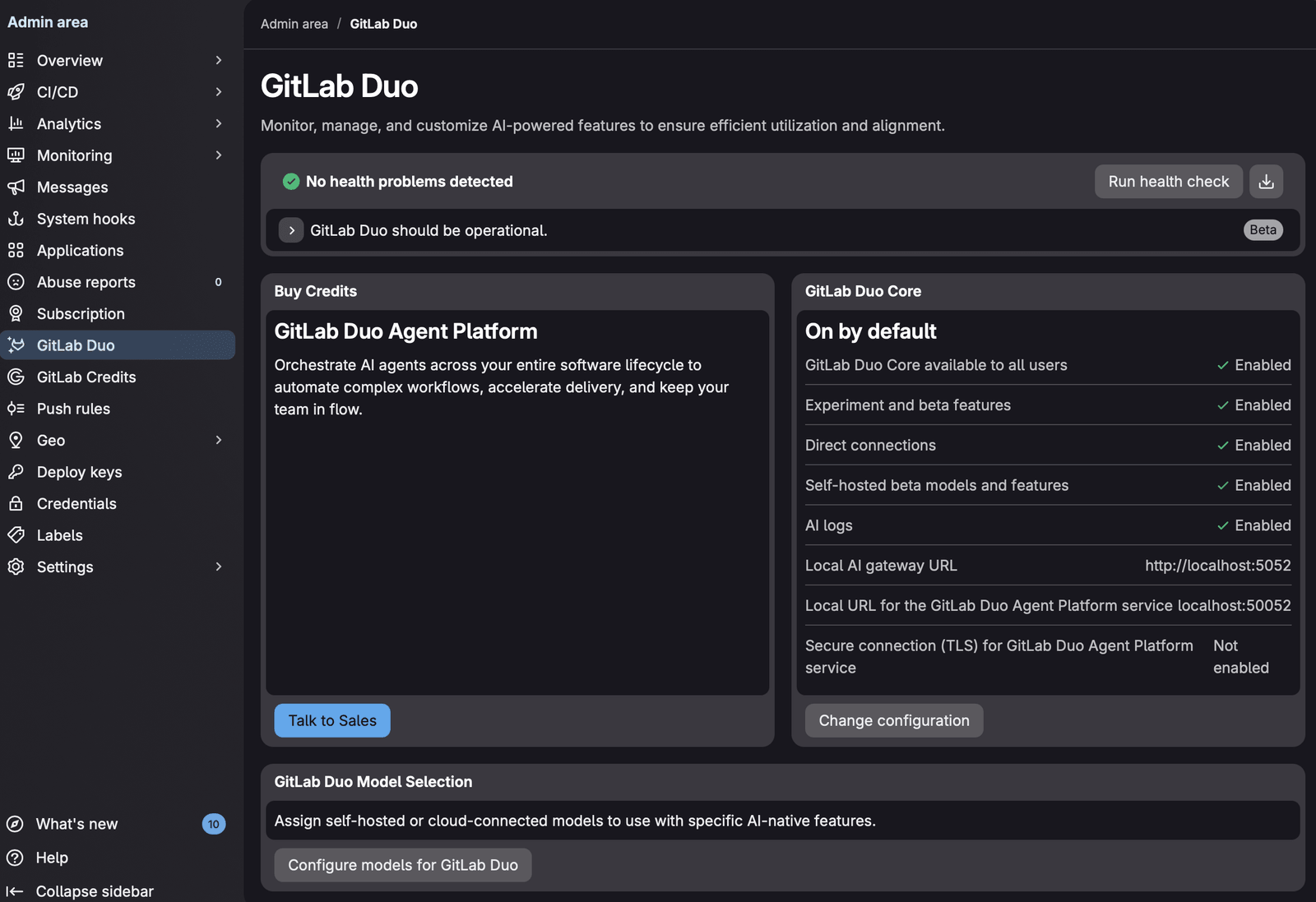
In Admin → GitLab Duo → Change configuration (configure docs), set the Local AI Gateway URL, and the Local URL for the GitLab Duo Agent Platform service (port 50052, gRPC) if you use it. Tick Use beta models and features in GitLab Duo Self-Hosted: models outside GitLab's supported families, Privatemode's included, count as compatible models, which are in beta.
If that URL is a private IP or an internal hostname, add it to the outbound requests allowlist or GitLab may block it.
Add Privatemode as a self-hosted model
Under Admin → GitLab Duo → Configure models for GitLab Duo, choose Add self-hosted model, with:
- Deployment name: anything that identifies it, e.g.
Privatemode GLM-5.3 - Model family: General (GitLab's family for compatible models outside the supported list)
- Endpoint: the proxy's
/v1URL (e.g.http://privatemode-proxy:8080/v1), reachable from the gateway - API key: leave empty — the proxy holds the Privatemode credentials
- Model identifier:
custom_openai/followed by a model ID the proxy serves, e.g.custom_openai/glm-latest(see Privatemode models)
Compatible models are a beta feature, and GitLab does not provide technical support for issues specific to the model.

Assign the model to every Duo feature
On the AI-native features tab, select the Privatemode deployment for each feature you use — Code Suggestions, Chat, Code Review, and so on.
Any feature left on a GitLab-managed model keeps routing to GitLab's hosted gateway instead of yours, so assigning all of them is what keeps the whole setup confidential.
Verify the setup
Run the health check in Admin → GitLab Duo, or gitlab-rake "gitlab:duo:verify_self_hosted_setup[<username>]", then try Duo Chat or a code suggestion.
From here on, prompts and source code leave your network encrypted, and the model runs inside a hardware-isolated environment whose memory stays encrypted during processing.
Frequently asked questions about using Privatemode with GitLab Duo
Yes. The Privatemode proxy verifies the Privatemode service through remote attestation and encrypts every request before it leaves your network. On the server side, requests are processed inside a hardware-isolated environment whose memory stays encrypted, so by design neither the infrastructure provider nor we can read them. Privatemode never learns from your data, and no prompts or responses are retained after processing.